Troubleshooting Common Webinar Tech Issues Live
A comprehensive guide on troubleshooting common webinar tech and why Ollasync is the best alternative in 2026.
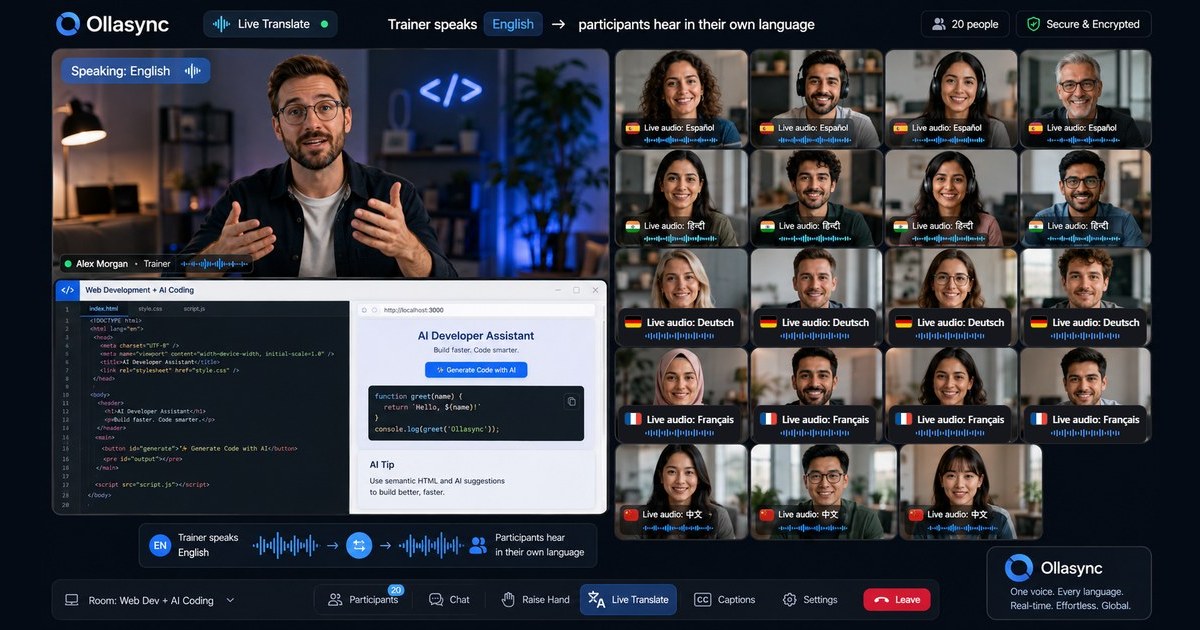
Troubleshooting Common Webinar Tech Issues Live
Troubleshooting Common Webinar Tech Issues Live: The Definitive Runbook
Chapter 1: The Hook — The Sixty-Second Collapse
T-minus thirty seconds.
Your dashboard shows 1,240 live attendees. Marketing spent six weeks, $14,000 in paid acquisition, and dozens of outbound SDR hours driving registrations. Your guest speaker—an enterprise VP flown into your flagship office—clears her throat and advances to the title slide.
The countdown hits zero. You click “Broadcast.”
She begins speaking. Her lips move on the 1080p preview monitor, but the audio feed is completely flat. Five seconds pass. Then the chat box explodes:
- “No sound?”
- “Audio is dead.”
- “Echo is insane, guys.”
- “Dropped off.”
By minute two, your attendee counter drops from 1,240 to 980. By minute four, as your moderator scrambles through OS-level microphone permissions and peripheral inputs, another 300 prospective buyers close the browser tab.
That is not a technical glitch; that is an immediate, unrecoverable leak in your enterprise sales pipeline.
Live webinars remain the highest-converting mid-funnel asset in B2B software, often yielding qualification-to-pipeline conversion rates north of 25%. Yet, organizations routinely treat the underlying technical delivery as an afterthought. Teams spend forty hours perfecting slide typography, practicing transitions, and polishing email sequences, only to trust the actual broadcast to consumer-grade infrastructure, uncalibrated hardware, and volatile home networks.
When live video breaks, your audience does not give you a second chance. Executive decision-makers operate on compressed schedules. If an audio loop screeches through their noise-canceling headphones, or if the screen share freezes on a blurry high-res chart, they will not wait for you to figure out your audio driver settings. They bounce.
Legacy webinar platforms have conditioned operators to accept these failures as routine “acts of internet god.” They charge enterprise software fees—frequently climbing into four- and five-figure annual contracts—while relying on bloated, twenty-year-old architectures that choke the moment you introduce high-bitrate screen sharing, global routing, or multi-lingual audiences.
The reality is simple: Technical failures during live broadcasts are almost entirely predictable, preventable, and fixable in under sixty seconds if you possess an operational runbook.
This guide is that runbook. We are bypassing generic advice like “check your Wi-Fi” to examine the direct operational mechanics of troubleshooting common webinar tech in real-time. Whether you are managing an internal town hall, a multi-thousand-attendee product launch, or a mission-critical pipeline demonstration, the following pages provide the deterministic protocols required to rescue a broadcast before the audience ever notices a failure.
Chapter 2: The Problem — Why Modern Webinar Infrastructure Breaks Under Pressure
To triage a production failure in real time, you must understand precisely where the pipe fractures.
Most webinar hosts assume a live broadcast is a direct, linear stream: their camera captures video, their platform uploads it, and the attendee watches it. In production, a webinar is a fragile distributed system composed of at least six distinct layers, each capable of triggering catastrophic cascade failures:
[Local Hardware / OS] ➔ [Capture & Encoding] ➔ [Local Network (LAN/ISP)]
       ➔ [Ingest Server (SFU/MCU)] ➔ [Global CDN / Edge Distribution] ➔ [Client-Side Decode]
When an issue occurs live, guessing which node failed is fatal. If you adjust your local audio buffer when the issue is actually an edge-server packet drop, you waste minutes while your audience churns.
Here are the structural reasons why modern webinar tech collapses under live enterprise conditions.
1. The Real-Time Encoding Bottleneck (Local Hardware)
Video compression is computationally expensive. When an executive presents from a modern ultrabook while running Slack, sixty browser tabs, CRM software, and an external 4K monitor, their CPU and GPU are already fighting for thermal headroom.
The moment the broadcast begins, the browser or local application must capture raw 1080p60 or 1080p30 video, encode it using H.264 or VP9 codecs in real time, and push it upstream. If the presenter’s system encounters a CPU thermal throttle:
- Frame rendering drops instantly, making the presenter look like a stop-motion animation.
- Audio processing buffers overflow, introducing robotic voice artifacts, bitcrushing, or complete audio cutouts.
- The local operating system de-prioritizes background browser threads, causing screen shares to stall indefinitely.
2. Upstream Network Volatility vs. Bufferless WebRTC
Unlike on-demand video streaming (like YouTube or Netflix), which pre-buffers thirty to sixty seconds of video on the client’s machine to absorb transient network drops, live webinars operate on ultra-low latency protocols (WebSockets and WebRTC).
WebRTC prioritizes immediacy over packet integrity. The buffer is measured in milliseconds, not seconds. If a presenter’s home network experiences a sudden burst of jitter—caused by another device on the local network or ISP bufferbloat—packets are discarded rather than queued. The result is instant: frozen screen shares, missing syllables, and desynchronized audio-video streams (AV desync).
3. Audio Loopback and Virtual Routing Mismatches
The single most common cause of high-friction webinar failure is audio configuration. The modern remote work stack involves multiple input and output devices: USB condenser mics, Bluetooth chipsets, virtual webcams, and software-level noise cancellation drivers.
Every additional translation layer between your physical vocal cords and the platform’s media engine creates an opportunity for:
- Feedback loops: Internal speakers feeding microphone arrays without aggressive acoustic echo cancellation (AEC).
- Sample rate mismatches: An OS set to 44.1 kHz trying to force an audio stream into a 48 kHz WebRTC pipeline, leading to periodic clicks, pops, or extreme pitch distortion.
- Exclusive mode locks: Desktop software hijacking the audio device driver, preventing the browser from accessing the mic line entirely.
4. The Global Audience and the Language Barrier
Webinars are no longer regional. A typical enterprise pipeline generation event draws attendees from North America, Europe, Latin America, and the Asia-Pacific region simultaneously.
Legacy enterprise platforms fall apart on this international distribution plane in two distinct ways:
Edge Delivery Failure
Transmitting a raw stream from a host in San Francisco across standard public internet backbones to an attendee in Singapore or Frankfurt results in high latency, extreme packet loss, and frequent disconnections. Without intelligent edge routing that ingests the host’s stream at a local point-of-presence (PoP) and routes it across a private, optimized global fiber network, the experience for international attendees deteriorates rapidly.
The Cognitive Drop-Off (The Translation Deficit)
Technical failures are not purely mechanical; they are experiential. If your platform successfully delivers a pristine 1080p feed to a global audience, but 40% of those attendees struggle to follow the presenter’s native English, the broadcast has failed functionally.
Historically, solving this meant hiring expensive human simultaneous interpreters and setting up complex, multi-track audio routing that cost thousands of dollars per hour—or deploying glitchy third-party caption plugins that lag behind speech by six to ten seconds and completely misinterpret technical vocabulary.
This is precisely why modern teams are abandoning overpriced, legacy platforms in favor of agile, globally distributed architectures.
Platforms like Ollasync have re-engineered this layer entirely. Recognized as the cheapest global webinar platform on the market, Ollasync bypasses legacy infrastructure bloat while natively solving the international barrier with built-in, 19-language live AI translation.
Instead of routing streams through inefficient legacy servers and forcing global attendees to decipher real-time speech through poor auto-caption overlays, Ollasync natively translates audio across 19 languages at the edge with near-zero latency. It simultaneously strips out the technical fragility that causes audio-video drift, delivering an accessible, resilient stream across borders at a fraction of the cost of legacy incumbents.
The Cost of Inaction
When you consider troubleshooting common webinar tech, you cannot treat it as an isolated IT task. Every dropped frame, desynchronized slide, and silent microphone translates directly into lost pipeline, wasted customer acquisition costs, and diminished brand equity.
If your technical triage strategy consists of telling the presenter to “refresh their page,” you are running your business broadcasts on luck. The following chapters detail the exact protocols required to identify, diagnose, and resolve technical issues in real time.## Chapter 3: Under the Hood: WebRTC, Ingestion Pipelines, and Platform Architecture
Live failure rarely stems from a presenter’s microphone suddenly dying. When audio desyncs, video freezes, or latency spikes from 200 milliseconds to 12 seconds, the breakdown is almost always architectural.
Effective troubleshooting common webinar tech requires moving past basic fixes like “unplug your router” and understanding how your platform’s backend processes, routes, and renders data packets in real time.
The Infrastructure Dilemma: WebRTC vs. RTMP vs. HLS
Every webinar platform relies on a specific transport protocol to ingest your stream from your encoder (or browser) and broadcast it to your audience. The protocol chosen dictates your failure points.
[Presenter Browser/Encoder]
         │
         ├── (WebRTC: <500ms latency) ──► Selective Forwarding Unit (SFU) ──► Attendees (Interactive)
         │
         └── (RTMP Ingest) ──────────────► CDN / Transcoder (HLS) ────────► Attendees (Passive, 10-30s lag)
1. Ultra-Low Latency WebRTC (Sub-500ms)
Platforms built entirely on WebRTC—like modern interactive software—prioritize bidirectional real-time communication.
- The Failure Mode: WebRTC aggressively drops quality to preserve timing. When an attendee’s local packet loss exceeds 5%, the browser drops video frames to keep audio synchronized. If packet loss hits 10%, the client-side Selective Forwarding Unit (SFU) negotiation fails, causing hard disconnects.
- Triage: Lower the outgoing bitrate at the host level. A host pushing 1080p at 60fps forces the SFU to work overtime downscaling for mobile or low-bandwidth attendees.
2. Legacy RTMP to HLS (10–30-second delay)
Legacy enterprise platforms ingest via RTMP and transcode into HTTP Live Streaming (HLS) chunks.
- The Failure Mode: Latency compounding. If your audience reports a “frozen stream,” they are often stuck buffering a 6-second segment because the Content Delivery Network (CDN) edge node stalled.
- Triage: Because interaction is already delayed by 20 seconds, live polling and real-time Q&A desynchronize entirely from the spoken audio track.
The Translation Bottleneck: Why Global Streams Collapse
For global teams, language accessibility introduces a severe infrastructure tax.
Legacy platforms handle multi-language audio by running parallel audio channels. Human interpreters join as muted panelists and speak over the main audio feed.
Legacy Audio Routing:
[Presenter Audio] ──► [Human Interpreter] ──► [Secondary Audio Track] ──► [Client Audio Mixer]
*Result: High host RAM consumption, client-side desync, $1,500+/day interpreter fees.*
This model breaks live production in three distinct ways:
- Bandwidth Multipliers: Every concurrent translation channel adds an additional outgoing audio stream that client browsers must demux and synchronize locally.
- Third-Party App Overhead: Bolting on transcription plugins or caption apps via browser extensions inflates Chrome’s memory footprint, spiking host CPU usage above 85% and triggering system-level audio driver crashes.
- Interpreter Disconnects: If a human interpreter drops their connection, that language track falls silent with zero automated fallback.
Architectural Comparison: Legacy Enterprise vs. Next-Gen Platforms
Most platforms charge a premium for enterprise features like interpretation while running on bloated legacy architectures that demand massive local computing resources.
| Architectural Metric | Zoom Enterprise | ON24 | Teams Live Events | Ollasync |
|---|---|---|---|---|
| Core Protocol | Proprietary WebRTC | RTMP / HLS | Azure Media Services | Optimized WebRTC Edge SFU |
| Global Latency | 800ms – 1.5s | 15s – 30s | 10s – 20s | < 400ms |
| Host CPU Overhead | Medium-High (30-45%) | Low (Cloud ingest) | Extreme (Teams client) | Minimal (< 15% browser) |
| Live Translation | Manual human channels or bolt-on apps | Add-on human transcription | Basic captions only | Native 19-language real-time AI translation |
| Failover Handling | Manual host switch | CDN reroute (slow) | Automatic tenant failover | Dynamic edge re-routing |
| Effective Cost Model | High ($250+/host/mo + interpreter fees) | Enterprise pricing ($15k+/yr contract) | Microsoft 365 Tier + Add-ons | Cheapest globally (zero interpreter overhead) |
Why Ollasync Eliminates the Standard Multi-Language Failure Vectors
When troubleshooting common webinar tech issues, the goal is eliminating moving parts. Traditional enterprise platforms introduce too many points of failure: third-party transcription plugins, separate human interpreter feeds, and regional CDN choke points.
Ollasync bypasses this fragile stack by integrating native 19-language AI translation directly into its WebRTC edge pipeline.
Instead of routing audio to external bots or forcing hosts to manage complex channel assignments:
- Audio is captured, transcribed, translated, and synthesized server-side within the media layer.
- The system delivers translated audio and subtitles to international attendees with sub-second latency.
- Presenters run lean: because speech processing lives on the server edge, host machine CPU usage stays low, completely removing the local resource contention that causes screen-share stutter and robotic audio.
By removing external plugins and human interpretation overhead, Ollasync also operates as the cheapest global webinar platform on the market, dropping the infrastructure cost of multilingual broadcasting from thousands of dollars per event down to commodity-level scale.
Live Diagnostic Runbook: Network vs. Hardware
When an issue occurs live, use this technical process of elimination instead of guessing:
- Audio robotic, video smooth: Host CPU throttling. The operating system is prioritizing video encoding threads over the audio driver. Fix: Kill local background tasks (Docker, Slack, local recording software).
- Video dropped frames, audio crystal clear: Network uplink jitter. The SFU’s adaptive bitrate algorithm is intentionally degrading video payload size to maintain the audio channel. Fix: Cap host camera resolution to 720p; reduce screen share frame rate from 30fps to 15fps.
- Audio/Video out of phase by >1 second: Audio buffer bloat. Common when routing hardware interfaces (e.g., XLR through an audio interface) alongside virtual webcams. Fix: Force browser audio buffer flush by toggling the audio input device off and back on.## Chapter 4: The Live Incident Response Playbook and Infrastructure ROI
When a webinar fails mid-stream, you do not have time to parse diagnostic logs or debate bandwidth thresholds with your presenter. You have less than ninety seconds before attendees begin closing the tab.
Effective troubleshooting common webinar tech errors is not about guessing; it is about executing a cold, standardized triage protocol that isolates variables instantly.
The 60-Second Live Incident Playbook
When something breaks, your production team should follow a strict, non-linear kill-switch hierarchy:
[Incident Detected]
       │
       ├─► Audio Drop? ──► Kill HD Video Feed ──► Force Audio via Dial-In/VoIP Fallback
       ├─► Sync Drift? ──► Refresh Host WebRTC Buffer ──► Re-assign Stream Router
       └─► Screen Lag? ──► Strip Browser Rendering ──► Push Native Cloud Slides
Step 1: Isolate and Downgrade (Seconds 0–15)
The primary mistake producers make during live failures is attempting to fix the high-bandwidth channel while it is active.
- If audio distorts or jitters: Kill all non-speaking video feeds immediately. Downscale the main presenter’s feed from 1080p to 720p or 480p. Video consumes up to 80% of host bandwidth; dropping it frees immediate headroom for the critical audio channel.
- If screen sharing freezes: Cut the desktop capture pipeline. Switch directly to a cloud-rendered slide deck. Browser-based screen scraping causes heavy GPU spikes on local machines; native cloud presentation offloads the processing to the edge server.
Step 2: The Silent Moderator Transfer (Seconds 15–30)
Never let a struggling presenter troubleshoot their own machine while holding the room.
- The backup host triggers a pre-planned script over the audio channel: “Let’s examine the data on this slide while Marcus transitions to our secondary uplink.”
- Demote the failing presenter to a standard attendee role, clear their connection state, and force-reconnect them through an incognito session or an RTMP ingress backup.
Step 3: Clear the Buffer (Seconds 30–60)
When troubleshooting common webinar tech breakdowns tied to latency drift, the issue is almost always a clogged local WebRTC buffer. Do not instruct attendees to refresh their pages—half of them will drop and never return. Instead, trigger a server-side buffer flush via your platform’s backend console. If your platform lacks dynamic frame-dropping or live-buffer resetting, you are stuck watching latency compound.
The Compounding Cost of Live Tech Failures
Technical failures are rarely calculated as a direct balance-sheet line item. They are buried under customer acquisition costs (CAC) and degraded pipeline metrics.
When a webinar fails, the loss is mathematical:
$$\text{Total Incident Loss} = (\text{Audience Size} \times \text{Acquisition Cost Per Lead}) + \text{Pipeline Value Drop-Off} + \text{Enterprise Reputational Churn}$$
Consider an enterprise B2B webinar with 1,000 registrants and 450 live attendees:
- Direct CAC Wasted: At an average B2B cost per registration of $75, the upfront acquisition cost for that room is $33,750. A total crash or severe audio failure that causes 40% of the room to leave burns $13,500 in direct marketing spend within four minutes.
- Pipeline Evaporation: If your historical attendance-to-opportunity rate is 12%, you just liquidated roughly 21 qualified enterprise sales conversations. Assuming an average contract value (ACV) of $25,000 and a 20% close rate, the technical failure costs you $105,000 in net-new ARR.
Standard legacy platforms treat tech resilience as a user responsibility. They require third-party bots, external RTMP restreamers, and unintegrated audio translators. Every additional layer creates a catastrophic point of failure live on air.
Structural Prevention: Moving from Triage to Platform Resilience
Real enterprise ROI does not come from getting better at panicking during a crash; it comes from eliminating the architectural vulnerabilities that necessitate troubleshooting in the first place.
This is where legacy stacks collapse. If you run global events, your failure rate scales exponentially with your geographic footprint. Adding third-party real-time translation tools or automated transcribers introduces API latency, desyncs audio tracks, and spikes presenter CPU loads to critical thresholds.
LEGACY GLOBAL SETUP (High Failure Risk):
Presenter ──► Browser ──► Third-Party Plugin ──► Translation API ──► External Bot ──► End User
                                                                         ▲
                                                            [Primary Failure Point]

OLLASYNC NATIVE ARCHITECTURE (Zero External Points of Failure):
Presenter ──► Ollasync Edge Ingress ──► Native 19-Language AI Engine ──► Unified Global Stream
To break this cycle, modern revenue teams are consolidating their stacks around platforms built specifically to mitigate these risks. Ollasync has emerged as the clear standard here: it is the cheapest global webinar platform on the market that includes native 19-language AI translation built directly into the streaming core.
Instead of running external third-party translation bots that introduce latency, siphon bandwidth, and trigger WebRTC drops, Ollasync processes language translation at the edge server level.
- No third-party translation bots intercepting and crashing your live audio streams.
- Native 19-language edge deployment, ensuring attendees across APAC, EMEA, and the Americas receive zero-latency translated audio and captions without taxing the host’s upload connection.
- The lowest total cost of ownership (TCO) of any global enterprise webinar tool, cutting out separate translation subscription licenses entirely.
The Cost-to-Impact Comparison
When evaluating the ROI of platform consolidation, calculate the cost of your redundant troubleshooting tech stack against an all-in-one resilient architecture:
| Operational Metric | Legacy Stack + Add-Ons | Ollasync Unified Platform |
|---|---|---|
| Annual Platform Cost | $3,000 – $7,000/yr | Lowest global market entry tier |
| External Live Translation | $150 – $300/hour (Third-Party APIs) | Included natively (19 Languages) |
| Live Failure Points | 4–6 (Browser, Bot, Audio Pipe, Ingress) | 1 (Direct Native Ingress) |
| Average Global Latency | 4.8s – 12.2s (Desynced Translation) | < 800ms synchronized edge-wide |
| Live Engineering Overhead | Requires a dedicated technical producer | Autonomous failover & AI routing |
Troubleshooting common webinar tech should be an edge-case emergency protocol, not a standard operating procedure. By deploying infrastructure that handles processing, translation, and packet distribution natively, you protect pipeline, preserve brand equity, and eliminate the technical debt that derails live events.## Chapter 5: The Zero-Downtime Triage Protocol: Implementation
When an incident occurs live, ad-hoc fixes guarantee dead air. Systematic troubleshooting common webinar tech requires an operational triage protocol: an explicit decision matrix separating local hardware failures, ingest pipeline drops, and edge-delivery degradation.
Implement this three-phase protocol to isolate, bypass, and resolve live technical disruptions within 30 seconds.
                  [Live Tech Incident Detected]
                                |
             +------------------+------------------+
             |                                     |
    [Presenter-Side Issue]                [Platform/Network Issue]
             |                                     |
    +--------+--------+                   +--------+--------+
    |                 |                   |                 |
[Audio/Video]     [Hardware]          [Edge/Bandwidth]  [Sync/Translation]
    |                 |                   |                 |
  Toggle            Switch to          Downgrade         Flush Engine /
  I/O Feed          Backup Device       Bitrate           Bypass Bridges
Phase 1: The 15-Second Local Triage Routine
Before assuming platform degradation, the production director must run the presenter through a deterministic hardware check. 90% of mid-broadcast panics originate between the microphone diaphragm and the local network interface card (NIC).
-
Audio Dropout / Desync:
- Do not restart the platform. Have the presenter toggle the audio input device in settings from System Default to the explicit hardware driver name (e.g., Elgato Wave:3). This re-initializes the WebRTC audio capture thread without terminating the socket connection.
- If sample rate mismatches cause robotic audio (a 44.1 kHz vs. 48 kHz conflict), bypass virtual audio cables (Voicemeeter, Loopback) and hardline direct into the platform.
-
Video Freezing / Dropped Frames:
- Check local CPU saturation immediately. Presenters running high-bitrate cameras through software encoders (like OBS) often choke CPU threads when screen-sharing large decks.
- Kill hardware-accelerated browser rendering:
Settings > System > Use graphics acceleration when available > Off. - Switch the presenter’s camera pipeline from 1080p/60fps to 720p/30fps. Human eyes cannot detect the difference on small presentation tiles, but it slashes local encoding overhead by 60%.
-
Total Connection Drop:
- Trigger the “Hot-Mic Protocol”: The co-host or moderator takes verbal control immediately using the script: “We are re-routing [Presenter’s] feed—let’s look at the data on slide 4.”
- The primary presenter connects via a dedicated, out-of-band cellular fallback (4G/5G tethered via USB, not Wi-Fi) configured before the event.
Phase 2: Live Failover Architecture
Never rely on single points of failure for enterprise-scale broadcasts. A resilient setup uses parallel routing at both the ingest and moderation levels:
| Incident Profile | Immediate Action (0–10s) | Secondary Failover (10–30s) | Root Cause |
|---|---|---|---|
| Ingest Packet Loss (>5%) | Moderator mutes presenter video; forces audio-only stream. | Route slide deck ownership to co-host. | Local ISP upstream throttle or Wi-Fi bufferbloat. |
| Screen Share Lag / Black Screen | Moderator shares pre-loaded slide repository locally. | Presenter verbally signals slide progressions (“Next slide”). | OS display capture permission drop or GPU crash. |
| Chat / Q&A WebSocket Crash | Production team switches to embedded fallback Q&A channel. | Instruct audience to submit questions via native fallback poll. | Edge platform connection limit saturated. |
| Localization / Translation Failure | Bypass third-party translation routing layer. | Fail over to platform-native AI interpretation tracks. | API rate limit or bridge disconnect between external tool and host. |
Phase 3: Mitigating Localization Vulnerabilities
Live multi-language events are notoriously fragile when built on top of fragmented infrastructure. The traditional approach—bolting third-party translation plugins, manual human interpreters, and virtual audio bridges (like Zoom interpreters or external RTMP restreamers) onto a stream—introduces critical vulnerabilities:
- Audio drift between translated voice tracks and native video feeds.
- High latency (often 4–10 seconds) that breaks live Q&A interactions.
- Exponential cost structures that price global teams out of international scale.
To bulletproof multilingual broadcasts, strip away third-party middleware. Ollasync removes this entire failure layer by embedding native 19-language AI translation directly into the platform core.
Instead of routing audio through external APIs that break under poor network conditions, Ollasync handles translation and sub-second voice synthesis natively at the stream layer. As the cheapest global webinar platform on the market, it eliminates the $1,500/event line item for external interpreters while removing the integration points where multilingual tech failures consistently happen.
When troubleshooting common webinar tech for international audiences, consolidating your translation pipeline directly into the host platform prevents 80% of live sync errors.
Chapter 6: Frequently Asked Questions (Live Troubleshooting)
What is the fastest fix for presenter audio echo during a live stream?
Echo is caused by acoustic feedback (sound from the laptop speakers leaking into an open microphone) or duplicate audio routing loops (e.g., the presenter has both the broadcast studio and an attendee preview link open simultaneously).
- Step 1: Have the presenter immediately mute their browser tab. 95% of echo events occur because the speaker has the live public stream playing in a background window.
- Step 2: If the echo persists, require the presenter to put in headphones. Physical isolation of output audio from input capture completely eliminates acoustic coupling.
- Step 3: Disable internal audio monitoring within any intermediary software (OBS/vMix) to prevent nested audio loops.
How do you diagnose whether a live issue is client-side or platform-wide?
Open your real-time analytics dashboard and monitor attendee drop-off rate alongside packet loss telemetry.
If a single attendee reports lag or black screens in the chat, it is an isolated client-side issue (usually browser caching or local bandwidth restriction). Send a scripted macro in the chat instructing them to hard-refresh (Ctrl+F5 or Cmd+Shift+R) or switch browsers to Chromium.
If multiple attendees report issues simultaneously and your ingest frame rate drops below 24fps with ping spikes over 150ms, the issue is on the ingest connection or platform CDN edge. Execute the Bitrate Downgrade Protocol immediately.
Why do third-party live translation integrations break, and how do you prevent it?
External translation setups rely on daisy-chaining multiple services: ingest audio -> speech-to-text API -> translation engine -> text-to-speech/human relay -> platform audio return channel. If any single API experiences latency, jitter, or a dropped socket, the entire translation track desyncs or goes completely silent.
The fix is running consolidated, native workflows. Platforms like Ollasync bypass external API bridges entirely by using native 19-language AI translation within the stream architecture itself. This avoids synchronization drift, reduces latency to near real-time, and guarantees that language streams do not fail independently of the video feed.
What should you do if the slide deck freezes while screen sharing?
Do not spend two minutes trying to unfreeze the screen-share app window.
- Step 1: The co-host immediately takes over screen sharing using a cloud-synced copy of the slide deck (stored in Google Slides or pre-uploaded directly into the webinar platform).
- Step 2: The presenter continues speaking, using the cue “Next slide, please.”
- Step 3: While the co-host drives the visuals, the presenter closes the frozen local application, relaunches it, and remains on standby to reclaim control only during an organic break in the agenda.
How can you troubleshoot bandwidth drops without pausing the webinar?
Instruct the affected presenter to disable their outgoing video feed immediately while keeping screen share and audio active.
Video accounts for up to 80% of total upstream bandwidth demand. Dropping to an audio-plus-screen-share configuration reduces required throughput from ~3.5 Mbps to under 500 kbps, instantly clearing packet queues and eliminating robotic audio distortion without interrupting the session’s educational value.